Binder AI
Use AI as an assistant, never as the parent.
Binder AI is a planning and recordkeeping assistant designed specifically for homeschool families. It knows your children, your subjects, your method, and your schedule — and it can only act with your explicit approval on each step.
AI screenshots
Binder AI is documented separately because it can read context, draft responses, and propose actions, but parents stay in control.
AI assistant
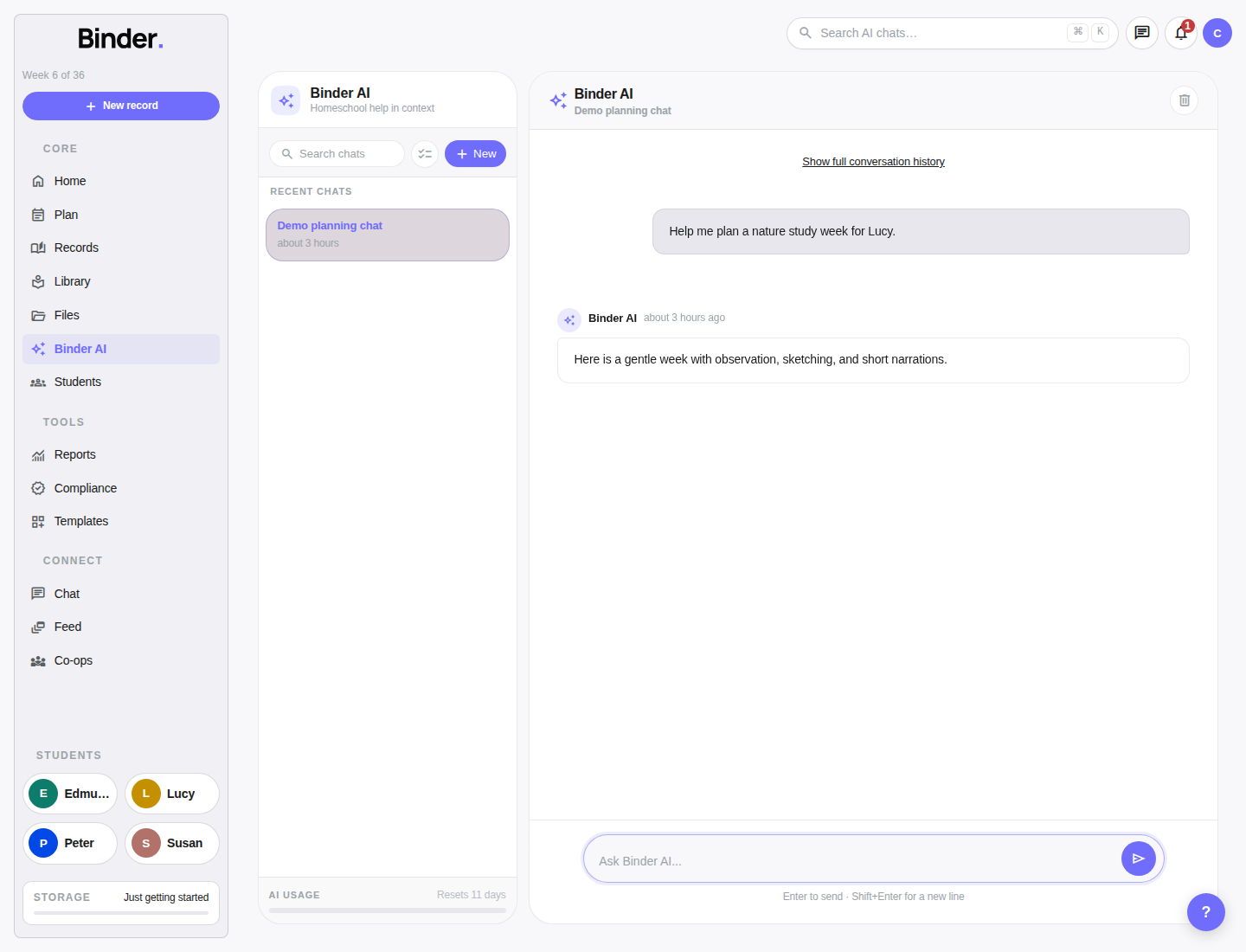
The AI assistant lives at /ai/chats and is accessible from the sidebar under AI. It's a multi-turn conversation — you can ask follow-up questions, give corrections, or build on previous responses across a session. Previous conversations are saved and accessible from the sidebar list.
Starting a conversation
Navigate to AI in the sidebar and click New Conversation, or type your first message. Binder AI knows your account context — your children's names, grade levels, current subjects, active term dates, and your homeschool method. You don't need to re-explain your situation in every message.
Conversation history
All past conversations are listed in the left sidebar panel of the AI assistant. Click any conversation to continue it. Conversations are named automatically from the first message. You can rename or delete conversations from the list.
Token meter
The AI assistant sidebar shows your remaining token budget for the current month. Each message and response uses tokens. When you're running low, Binder displays a warning. The budget resets on the 1st of each month. See Token budgets for limits by plan.
Saving to records
Any AI response can be saved directly to Binder. Click Save as Lesson to create a lesson from a lesson plan response. Click Save as Record to create a rich-text record from a narrative or summary response. Both actions open a form with the AI content pre-filled for your review and editing before saving.
What AI can access and create
Binder AI has access to your homeschool data and can both read and write to your account — but only with your approval at each step. Here's exactly what it can do:
What AI can read
- Today's agenda — all lessons planned for today across all children
- Child profiles — name, grade level, subjects, method, notes
- Current term — dates, week number, attendance goal
- Portfolio summary — recent completions, books, narrations, hours
- File content — if you reference a specific file, AI can read its content to help you summarize or build from it
What AI can create or update
- Create or toggle a lesson complete
- Log a narration
- Write a daily journal entry
- Log a nature journal observation
- Log a field trip
- Add a book to a child's reading list or mark it complete
- Add a habit
- Add a memory work piece
- Suggest a weekly rhythm or draft a full lesson plan
- Summarize the week's activity across children
- Search the resource library
None of the write actions above happen automatically. Every action AI wants to take is surfaced as a proposed action — see the next section for how that works.
Proposed actions
When Binder AI wants to create or modify something in your account, it shows you a proposed action inline in the conversation — a card showing exactly what it wants to do, with the specific details filled in. You decide what to do with each proposal.
Accepting a proposal
Click Accept on the proposal card. Binder executes the action immediately — the lesson is created, the narration is logged, the book is added. You'll see confirmation in the conversation and in the relevant section of the app. The proposal card is marked as accepted.
Dismissing a proposal
Click Dismiss to reject the proposed action without taking it. The proposal is marked as dismissed. Binder AI doesn't retry dismissed proposals unless you explicitly ask it to try again. Dismissing is always safe — nothing was changed.
This proposal system means AI is always transparent about what it wants to do. There are no silent background actions — every change to your account appears as a proposal you can review, edit (by asking AI to revise before accepting), or reject.
Saving AI output
For longer AI-generated content — lesson plans, portfolio narratives, annual review drafts, reading lists — use the save buttons at the bottom of any AI response to bring the content into Binder properly.
Save as Lesson
If AI drafted a lesson plan or a lesson description, click Save as Lesson. A lesson creation form opens with the AI content pre-filled in the title and notes fields. Select the child, subject, and date, then save. The lesson appears in your planner immediately.
Save as Record
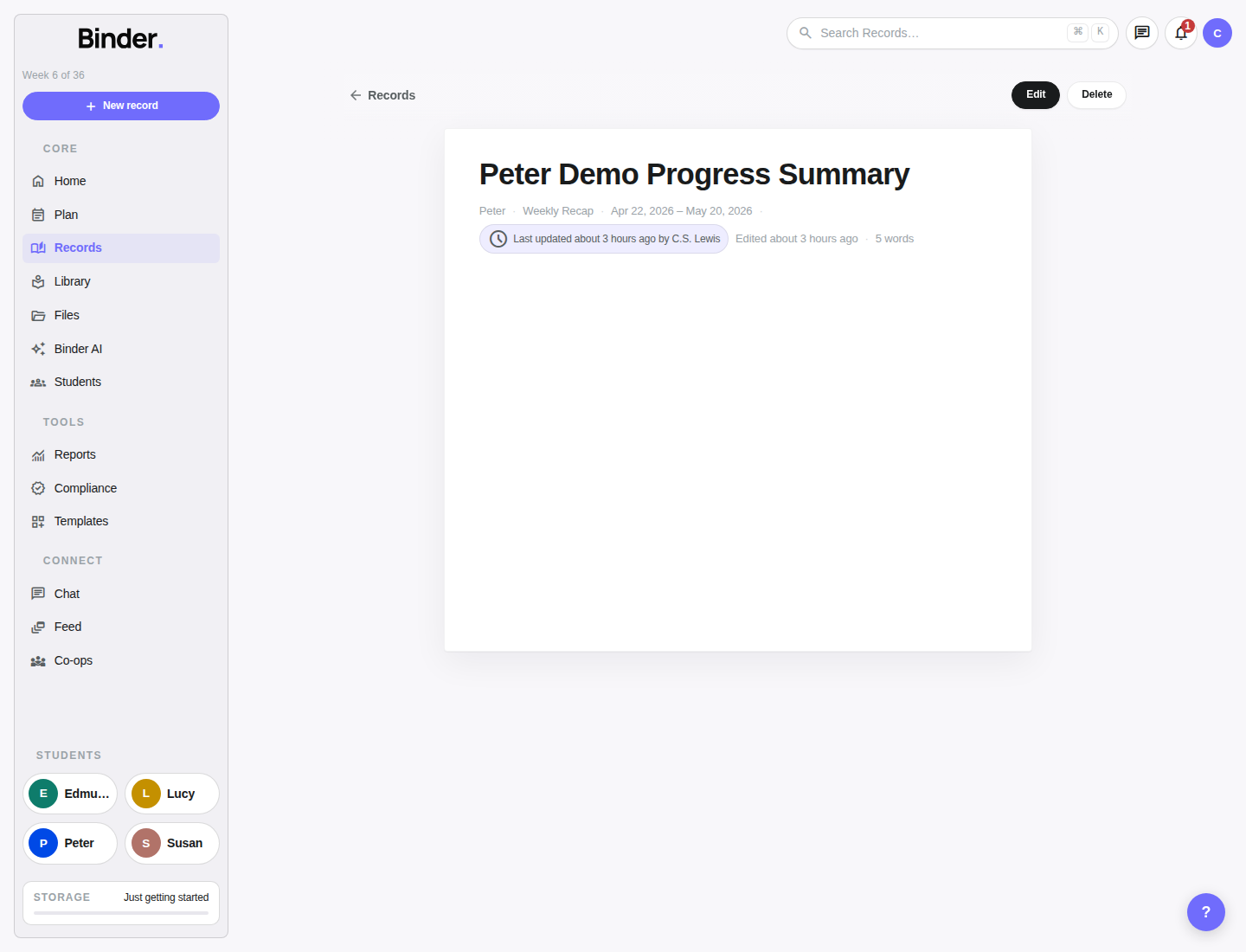
If AI wrote a portfolio narrative, an annual summary, or a progress overview, click Save as Record. A record creation form opens with the AI text in the rich-text body. Add a title, select a child, and save. The record appears in the portfolio feed.
Always review AI content before saving. AI drafts are starting points — edit them to add your own voice, remove anything that doesn't fit your family, and correct any details that aren't accurate. The save buttons open a form for editing, never save silently.
Token budgets
AI conversations use tokens — units of text that measure how much processing each message requires. Binder sets monthly token budgets by plan. The budget covers both the text you send and the responses AI generates. It resets on the 1st of each calendar month.
Budget by plan
- Free — 5,000 tokens per month (~10–15 moderate conversations)
- Plus — 50,000 tokens per month (~100–150 conversations)
- Scholar — 500,000 tokens per month (extensive daily use)
How to conserve tokens
- Ask specific questions rather than broad open-ended prompts
- Use the AI Lesson Generator (single-shot) for one-off lesson plans instead of a multi-turn conversation
- Close conversations when you're done — ongoing open conversations use context tokens on each new message
- On Free, reserve AI use for week planning and annual record drafting rather than daily questions
The token meter in the AI assistant sidebar shows your remaining budget as a percentage and approximate count. When your budget is exhausted, the AI assistant is paused until the next monthly reset. Your conversations and history are never deleted when the budget runs out — you just can't send new messages until it resets.
Parent-controlled by design
Binder AI is intentionally constrained. Here's the design philosophy behind those constraints:
Good uses of Binder AI
- Draft lesson ideas from a topic or unit theme
- Turn rough daily notes into polished portfolio language
- Suggest what records to keep for an unusual or project-heavy week
- Summarize what happened across all children over the last two weeks
- Create planning scaffolds for a new subject or curriculum
- Draft an annual narrative to review, edit, and save as a formal record
What AI shouldn't replace
- Your judgment about what your child is ready to learn
- Legal compliance decisions — always verify with your state
- Final evaluations or assessments without your review and editing
- The texture and truth of your family's actual homeschool story
AI should feel like a quiet, knowledgeable secretary — one who knows your children's names and history, can draft things quickly, and always waits for your sign-off before doing anything. The parent runs the homeschool. Binder AI just helps with the paperwork.