File manager
Your homeschool files, organized.
The Binder file manager gives you a secure, searchable, versioned place for every worksheet, PDF, photo, curriculum document, and recorded project in your homeschool. Access it from Files in the top navigation.
File manager screenshots
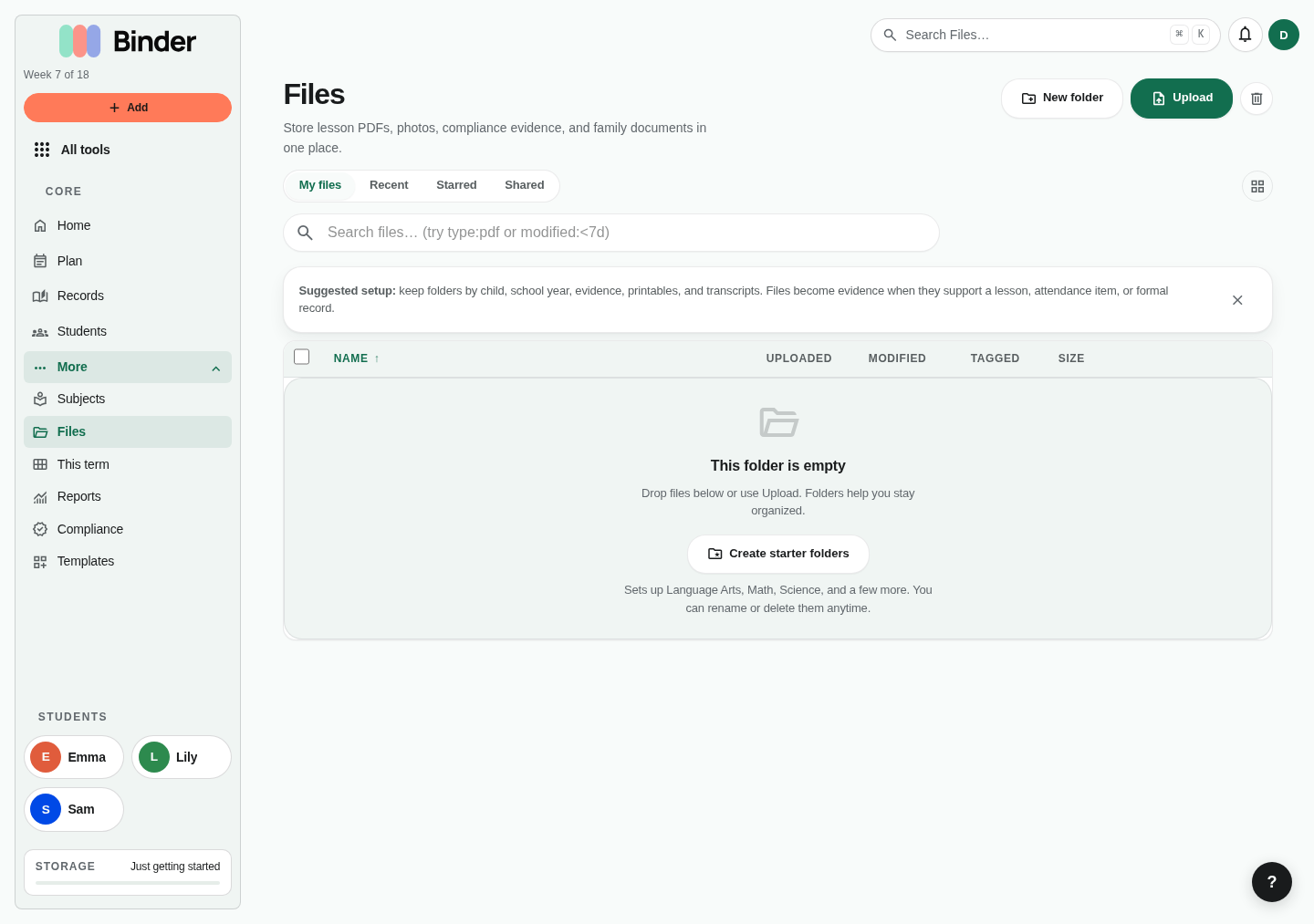
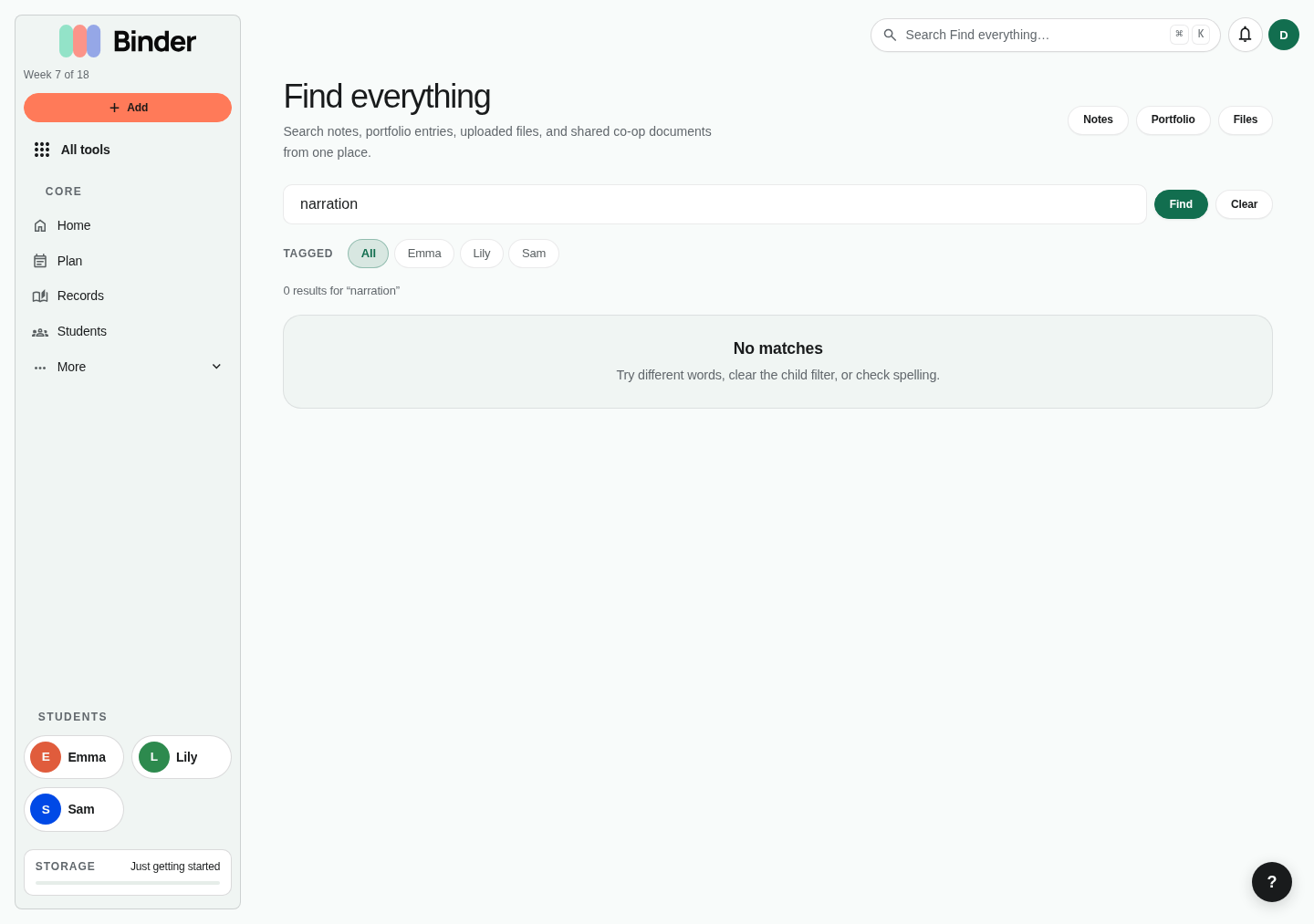
Files are organized by folders, child tags, starred items, recent activity, search, and storage accounting.
Uploading files
Upload files directly from your browser — no app install required. Binder uploads directly to secure cloud storage (Amazon S3) from your browser, so large files don't have to pass through Binder's servers. The upload is fast even for large PDFs, videos, and photo collections.
Supported file types
Binder accepts any file type — PDF, JPEG, PNG, MP4, MP3, MOV, DOCX, XLSX, PPTX, and more. Individual file size limit is 100 MB. For larger video files, consider compressing before uploading.
How to upload
In the file manager, click Upload or drag files directly into the browser window. Select the destination folder, the child the file belongs to (optional), and confirm. The file appears in the file list immediately while uploading in the background.
Replacing a file
To upload a new version of an existing file, open the file detail and click Replace. The original file is saved to version history automatically before the new version takes its place. You can restore the previous version at any time.
Previews for Office files
Word, Excel, PowerPoint, and RTF uploads get a PDF preview a few moments after upload, so you can read a curriculum guide or a scanned worksheet without downloading it. Images and PDFs preview immediately. The original file is never changed.
Edit a Word file as a note
Open a .docx file and choose Edit as note to turn its text into a Binder note in the rich-text editor. Headings, lists, and emphasis carry over; tables are flattened. Spreadsheets and slides stay as previews and downloads.
Deduplication
Before completing an upload, Binder checks whether the exact same file (by checksum) already exists in your account. If it does, Binder alerts you and lets you decide whether to upload a duplicate or link to the existing file instead.
Folders and organization
Files live in a folder tree — just like a computer's file system. Create folders at any depth, move files between folders, and organize however works best for your family. Common structures include organizing by child, by school year, by subject, or by curriculum resource.
Creating folders
Click New Folder to create a folder in the current location. Give it a name, and optionally a color and an emoji to make it visually distinctive. Folder colors and emoji appear in the folder tree for at-a-glance navigation.
Starter folder sets
If you're setting up from scratch, use the Create starter folders option to generate a sensible folder structure automatically — one folder per child, with subfolders for subjects and school years. You can customize or delete any of these after they're created.
Moving files and folders
Drag a file or folder to a new location in the folder tree, or use the Move option in the file's action menu. To move multiple files at once, select them using the checkboxes and use Bulk Move.
Starring files
Star any file or folder to add it to your Starred view — a quick-access list of your most important or frequently referenced files. Starred files appear in a dedicated sidebar section for instant access.
Searching files
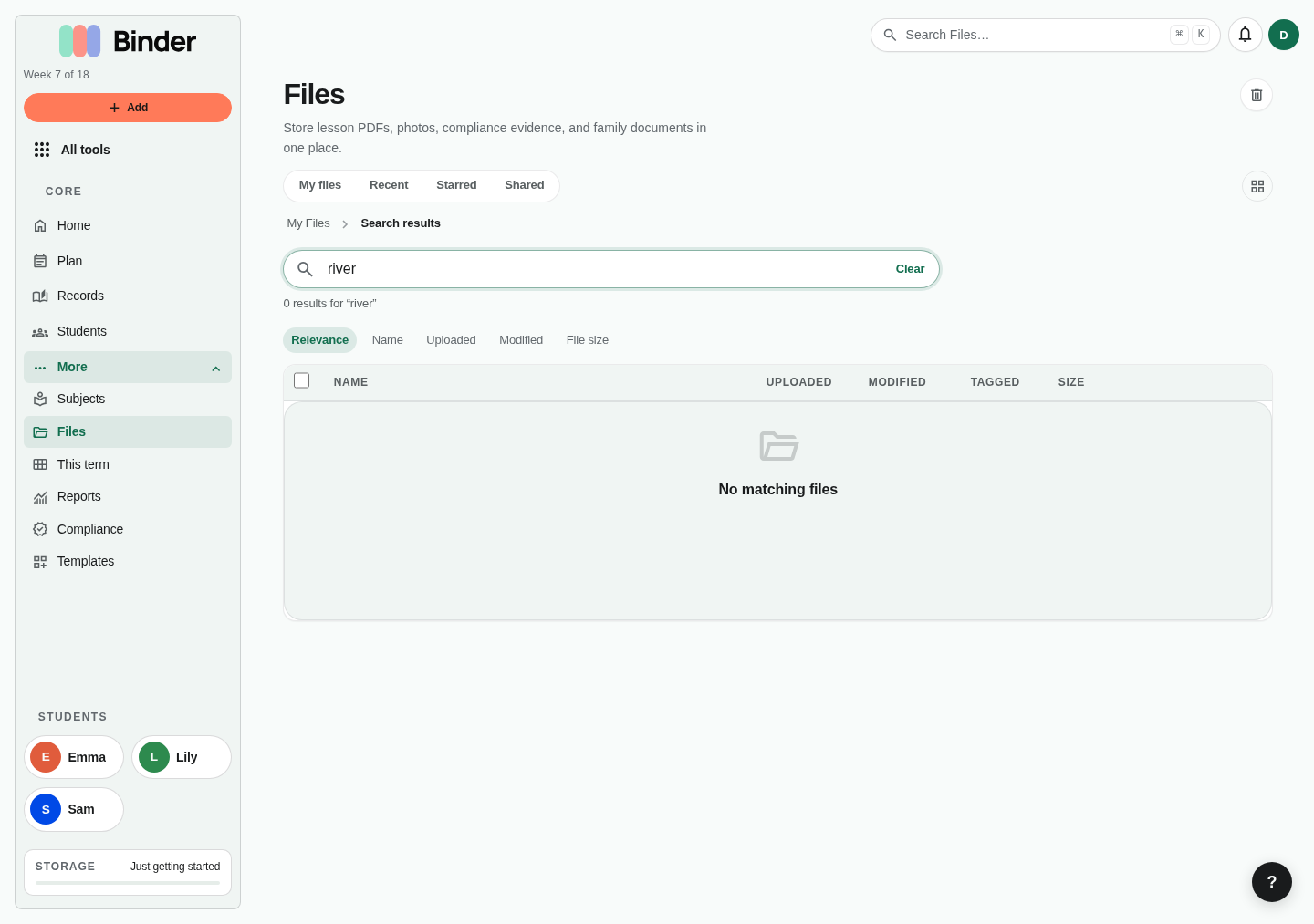
The file manager has a powerful search bar at the top of the Files view. Basic keyword search matches file names. Advanced token syntax lets you filter precisely by file type, child, modification date, and size.
Token search syntax
type:pdf— show only PDFstype:image— show only image filestype:video— show only video fileschild:Emma— show files tagged to a specific childmodified:<7d— modified in the last 7 daysmodified:<30d— modified in the last 30 dayssize:>10mb— files larger than 10 MBsize:<1mb— files smaller than 1 MB
PDF full-text search
Binder indexes the text content of uploaded PDF files. If you search for a word or phrase and a PDF contains it, Binder will find that file even if the keyword isn't in the file name. Indexing runs automatically after upload — large PDFs may take a few minutes to become searchable.
Tokens can be combined: type:pdf child:Emma modified:<30d finds all PDFs tagged to Emma modified in the last month. Search results show matching files from all folders, not just the current one.
Version history
Every file in Binder keeps a full version history. When you replace a file or upload an updated version, the previous version is saved automatically. Version history is especially useful for curriculum documents, annual records, and any file you revise throughout the year.
Viewing versions
Open a file's detail view and click Version History. You'll see a list of all past versions with upload date, file size, and the account that uploaded each version. The current version is marked at the top.
Restoring a version
To restore an older version, click Restore next to any version in the history. The selected version becomes the current version, and the version you just replaced is added to the history list. No version is ever permanently deleted when you restore.
Sharing files
Create a share link for any file to send it to an evaluator, co-op parent, grandparent, or anyone else — without giving them access to your Binder account. Go to a file's detail page and click Share.
Visibility options
- Anyone with the link — No Binder account required. Anyone who has the URL can open the file.
- Signed-in users only — The recipient must have a Binder account and be signed in to view.
Permission & expiry
Set whether the recipient can view only or view and download. Optionally set an expiry date — the link stops working after that date automatically. Useful for temporary access for evaluators or end-of-year submissions.
All active share links for your files appear in the Shared sidebar section so you can see what's currently accessible and revoke any link at any time.
Trash and recovery
Deleting a file sends it to Trash rather than permanently removing it. Files in Trash remain recoverable for 30 days, after which they're automatically purged. This gives you a safety net for accidental deletions.
Restoring from Trash
Open the Trash view in the file manager sidebar. Find the file or folder you want to recover and click Restore. Binder restores the file to its original folder location, recreating any parent folders that were also deleted.
Permanent deletion
To permanently delete a file and free storage, select it in Trash and click Delete Forever. This action is irreversible. You can also use Empty Trash to permanently delete everything in Trash at once.
Bulk operations
Select multiple files using checkboxes and use the bulk action bar to trash, restore, permanently delete, move, or ZIP download up to 50 files at once.
Folder deletion
Deleting a folder moves all files inside it to Trash as well. Restoring the folder restores all its contents to their original nested structure.
Storage limits
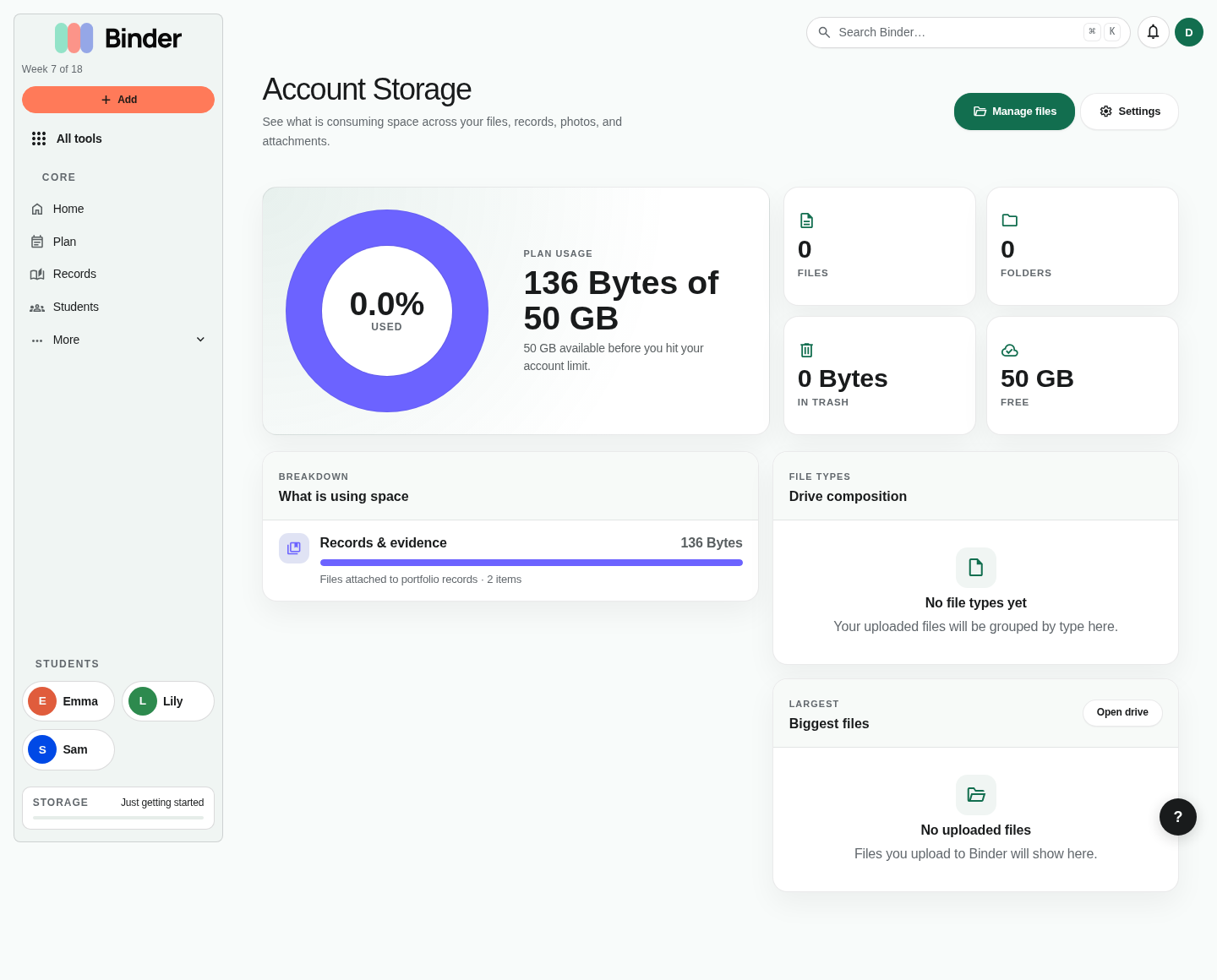
Each Binder plan includes a storage quota. Binder counts all files in the file manager, version history bytes, and files attached as evidence to lessons and other records.
Storage by plan
- Free — 1 GB
- Plus — 25 GB
- Scholar — 50 GB
Checking your usage
Your current storage usage is shown in Account → Settings. Binder tracks usage in real time and prevents new uploads if you've reached your plan limit. Upgrade to a higher plan to increase your storage quota.
Tips for managing storage: permanently delete files you no longer need (don't just trash them), compress large video files before uploading, and use the file manager's size filter (size:>50mb) to find your largest files for review.