Records & compliance
Keep records without making records the whole point.
Binder turns the ordinary evidence of learning into organized homeschool records: attendance logs, compliance dashboards, portfolio feeds, rich-text narratives, high school transcripts, and printable progress reports.
Records screenshots
Records combine attendance, portfolio evidence, compliance context, progress summaries, and transcript-ready academic data.
Attendance tracking
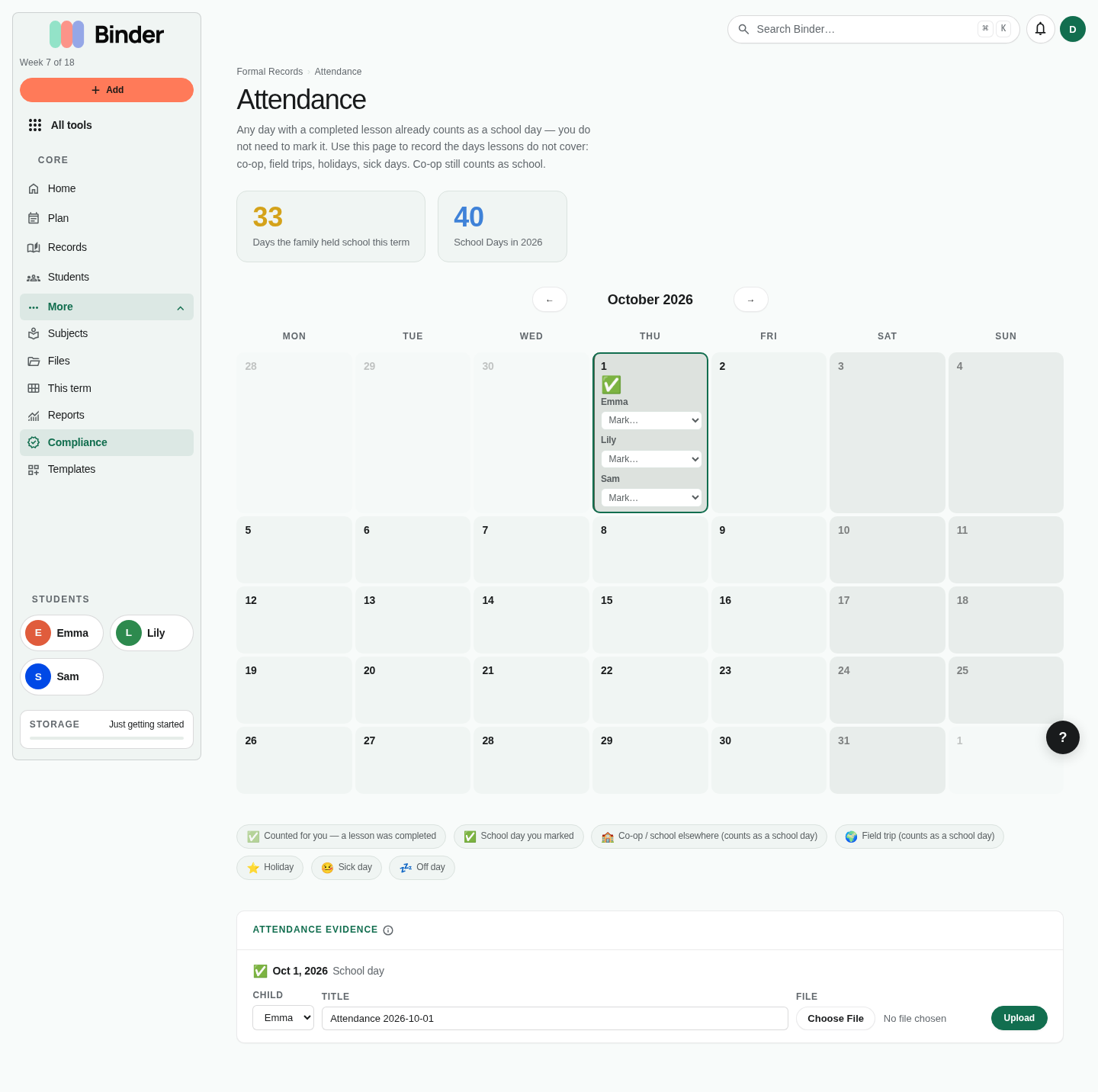
Open Compliance (under More) and choose Attendance to see and manage your attendance calendar. Binder automatically marks a day as a school day when at least one lesson is completed on that date. You can also manually set any day's status.
Day status types
- School day — A day of formal instruction. Auto-set when a lesson is completed; can also be manually marked.
- Co-op — School happened somewhere else, such as a co-op or tutorial day. Counts as a school day. Mark it from the day's menu on Plan.
- Field trip — A designated educational outing. Counts as a school day.
- Holiday — A planned break day (Thanksgiving, Christmas, family vacation). Does not count toward school day goals.
- Sick day — An unplanned absence due to illness. Does not count toward school day goals.
- Off day — Any other rest day, including a Day off marked on Plan. Does not count toward school day goals.
Attendance calendar
The attendance view shows a full calendar with color-coded day status. School days appear in your accent color; holidays and sick days in neutral tones. The summary at the top shows your running school day count against your term's attendance goal and your state's requirement if you've set a compliance profile.
Tip: Don't stress about perfect attendance records throughout the year. At the term end is the right time to review and tidy up the calendar — confirm that the days that were actually school days are marked correctly, then export or print for your records.
Compliance profile
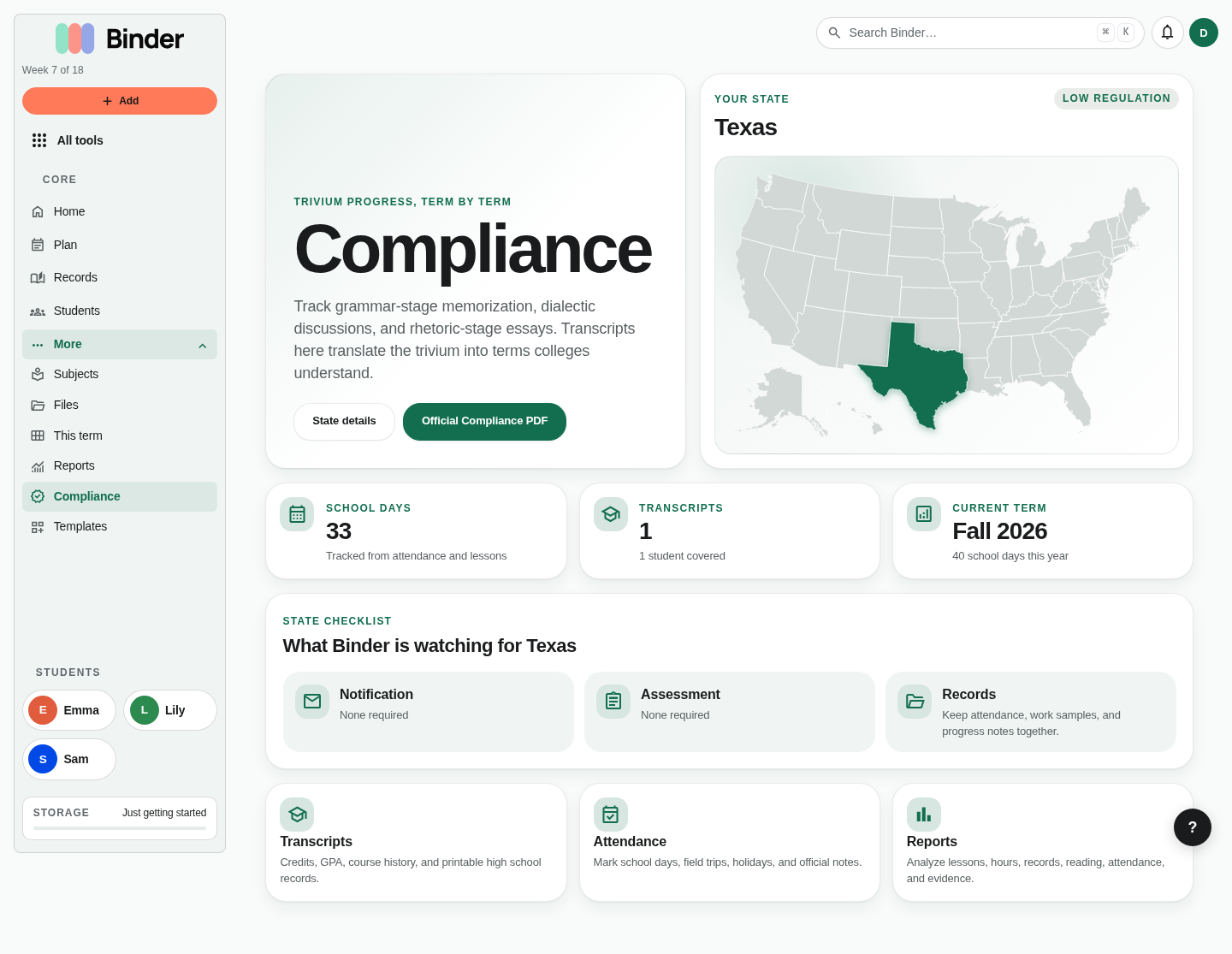
If your state legally requires homeschooling families to meet minimum standards — instructional days, instructional hours, or specific subjects — Binder's compliance profile tracks your progress against those requirements in real time.
Setting your state
Open Compliance (under More) or Account → Settings and select your US state. Binder loads that state's legal requirements for days, hours, and required subjects from an internal database of homeschool laws.
What the dashboard shows
The compliance dashboard shows three progress bars: days completed vs. required, instructional hours logged vs. required, and required subjects with lessons logged vs. total required. Each bar updates in real time as you log lessons and complete days.
Progress toward requirements
Days come from your attendance calendar. Hours come from your lesson durations — which is why logging lesson duration is important for compliance — plus minutes entered in Log learning without a subject, which are shown as "not tied to a subject" and never count toward a subject. Subjects come from the subject tags on your completed lessons matched against your state's required subject list.
Compliance notice
Binder shows what your state requires based on its database, which is compiled from publicly available homeschool law summaries. Always verify requirements directly with your state, district, umbrella school, evaluator, or homeschool organization. Binder is an organizational tool, not legal advice.
Portfolio feed
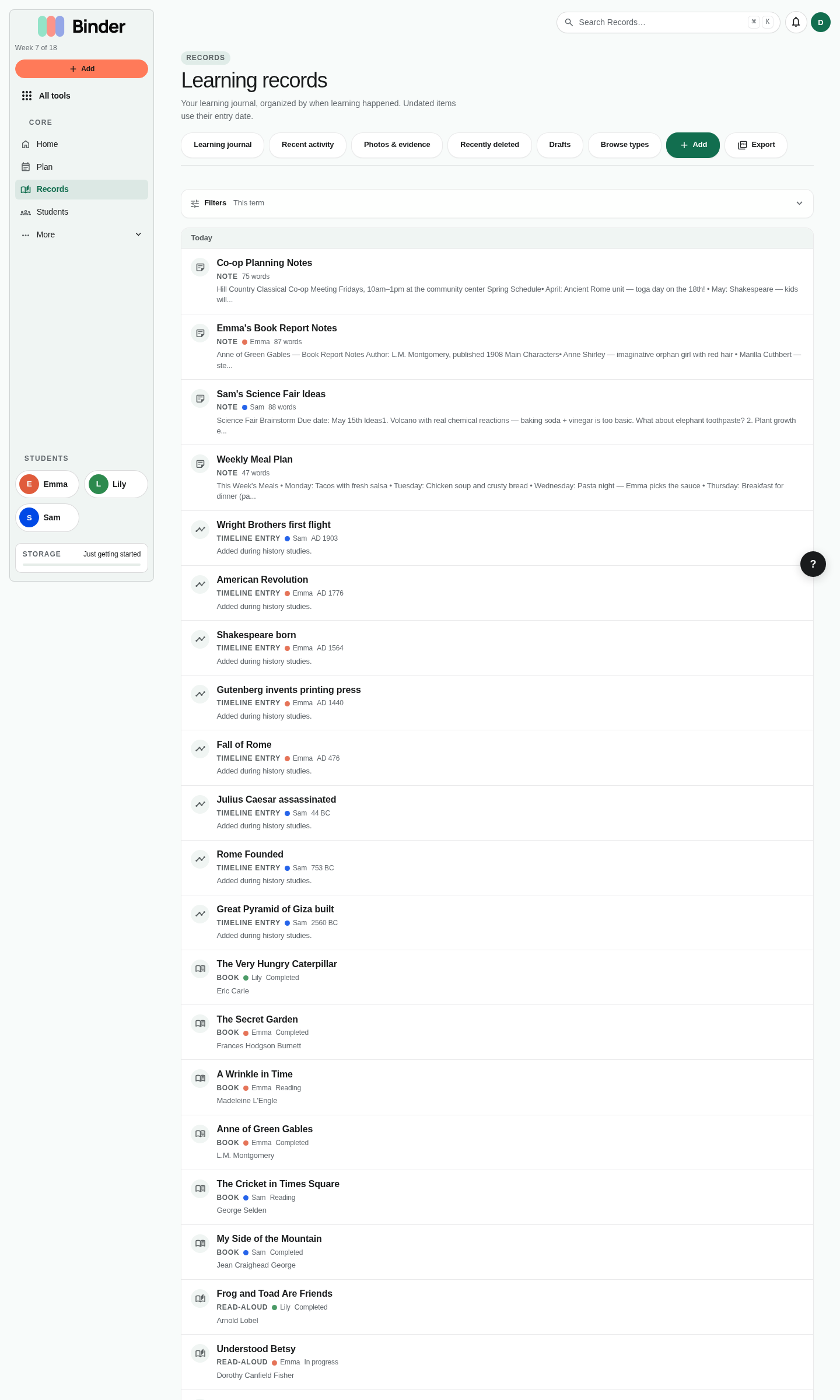
The portfolio feed at Records → Portfolio is a unified, chronological view of everything your family has logged in Binder: lessons, narrations, read-alouds, field trips, nature journal entries, learning days from Log learning, memory work completions, copywork, and more. It's the whole educational record in one scrollable timeline.
Filtering the feed
Filter by child, record type, date range, or subject using the filter bar. You can narrow the feed to show only a specific child's lessons in a specific subject for a specific term — ideal when preparing for an annual review or evaluator meeting.
Public portfolios
On a Scholar plan, a child's portfolio can be shared as a live page. Go to a child's profile and enable the public portfolio toggle. Anyone with the link can read it without a Binder account. Search engines are asked not to index it (not a guarantee). The page updates as you add records — it is not a frozen snapshot. Revoke by making it private; copies already made cannot be recalled. The public copy may lag a few minutes on Cloudflare after revoke or new records.
Portfolio PDF
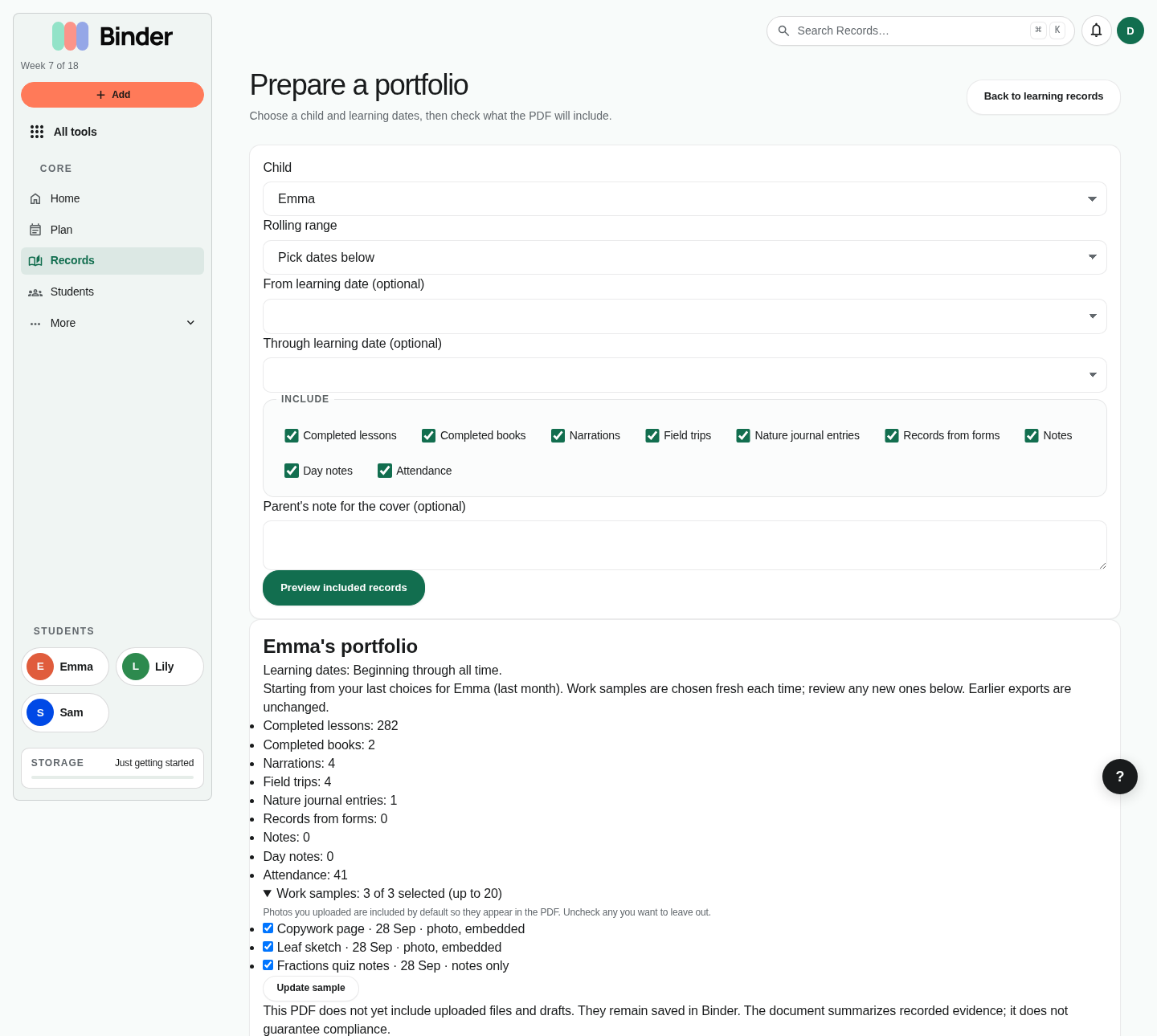
A portfolio PDF is a formatted document built from the records you already keep, for an evaluator, a co-op, a grandparent, or your own shelf. Start at Records → Prepare a portfolio.
1. Choose the child and dates
Pick a child, then either a rolling range (last month, last 30 days, current term, all time) or explicit learning dates. Binder remembers your last choices for each child, so next month's portfolio starts from the same settings with the dates rolled forward.
2. Choose what to include
Tick the record types that belong: completed lessons, completed books, narrations, field trips, nature journal entries, form records, freeform notes, learning days, and attendance. Anything unticked is listed as left out by your choice. Drafts and files in the Files library are never included.
3. Add work samples and a note
Photos attached to lessons and records (JPEG or PNG) can be embedded as work samples with their caption and date, up to 20 files. PDFs, videos, and documents are listed by title as attached files rather than pasted in. Work samples are chosen fresh each time. An optional parent's note appears on the cover.
4. Preview, then create
Every plan can open sample pages: the first three pages, built the same way as the full document and labeled as a sample. Creating the full PDF is a Plus action; your selection is kept for seven days so a trial or subscription brings you straight back to it.
A few honest details: a learning day saved together with a lesson through Log learning is shown once and marked as linked rather than counted twice; journal time that was never entered is printed as "not tracked" instead of zero; a child-specific attendance record overrides the household record for that date. The document summarizes what you recorded. It does not certify compliance.
Rich-text Records
Records are long-form, rich-text documents — annual narratives, semester reviews, portfolio summaries, reading lists compiled in paragraph form, evaluation prep documents, or any other structured writing about your child's year. Go to Records → New Record to create one.
The rich-text editor
The editor supports headings, bold, italic, bulleted and numbered lists, blockquotes, and inline file attachments. You can write the record entirely by hand, paste in text from another source, or use a template to auto-populate sections from your Binder data.
Record templates
Binder includes pre-built record templates like "Annual Narrative," "Portfolio Summary," and "Reading Record." When you apply a template, Binder auto-populates it with real data from your term: completed lessons, logged hours, books read, narrations written, and subjects covered. Edit the draft before saving.
Creating your own templates
Go to Records → Templates to create custom templates. Define the sections you want — each section becomes a heading in the auto-populated record. Save the template and reuse it every term.
Docs (lightweight notes)
For simpler freeform notes that don't need the full record structure — curriculum planning notes, reading lists in progress, lesson prep — use Docs. Docs have the same rich-text editor but without template support or the portfolio-feed integration.
Transcripts Scholar
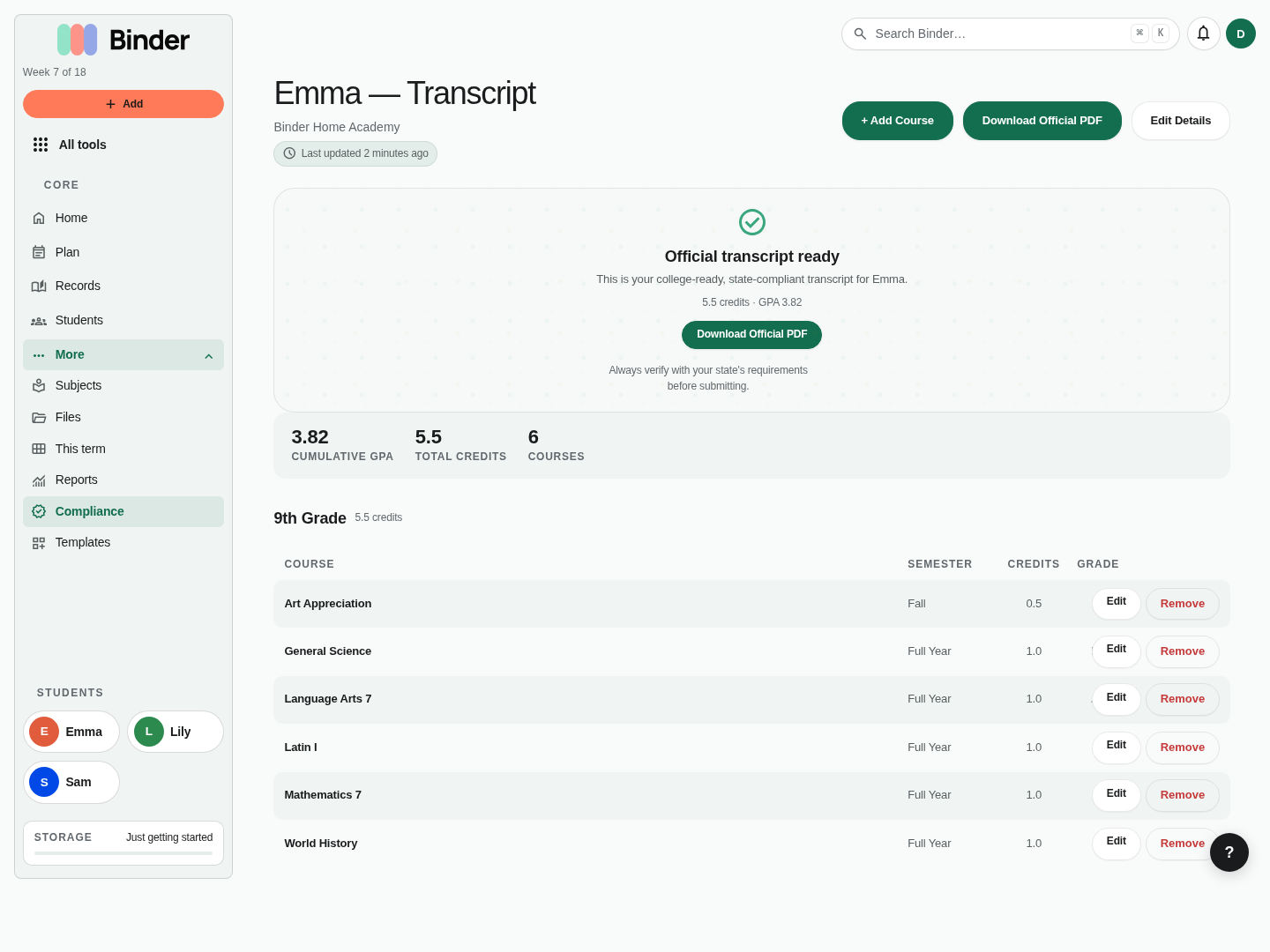
The transcript tool creates official-looking high school academic transcripts for each child — the kind a college, employer, or scholarship application expects to see. Transcripts require a Scholar plan.
Creating a transcript
Open Compliance (under More) and choose Transcripts. Click New Transcript for a child. Enter your school name, address (if needed), and projected graduation date. These details appear on the printed transcript header.
Adding courses
Add each course the child has completed or is completing. For each course: name, grade year (9th through 12th), semester (fall, spring, or full year), credits earned (typically 0.5 for a semester, 1.0 for a full year), and a letter grade (A through F).
GPA calculation
Binder automatically calculates both unweighted and weighted GPA from the grades and credits you enter. GPA appears on the transcript and updates whenever a course is added or modified.
Course descriptions
Each course has a description field for a one-paragraph overview of what was studied, the curriculum used, and any significant texts or projects. College admissions offices often review course descriptions alongside the transcript itself.
When the transcript is complete, click Export PDF to generate a print-ready document formatted as a conventional academic transcript. The PDF includes the student's name, school information, course list, GPA, and graduation date.
Progress reports Plus
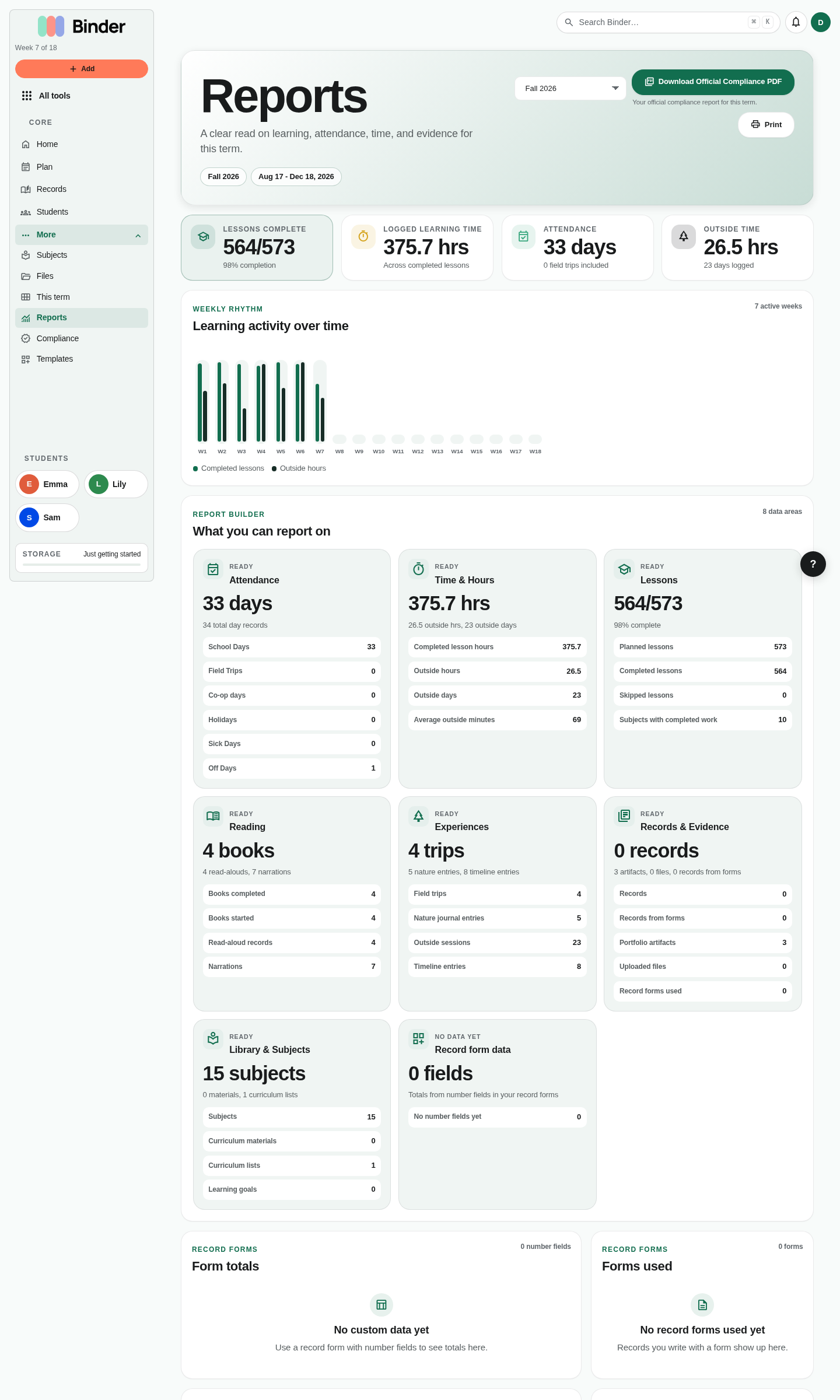
Progress reports compile a term's worth of data into a formatted summary: lessons completed, hours by subject (with Log learning minutes not tied to a subject on their own line), attendance days, books read, and narrations logged — per child. Go to Formal Records → Reports to generate a report for any term.
On a Plus or Scholar plan, you can export the report as a compliance PDF — a formatted document that includes your state's requirements alongside your actual progress. This PDF is designed to satisfy most state reporting requirements and is accepted by most umbrella schools and evaluators. Always verify what your specific state or evaluator needs before relying solely on this document.
Reports are scoped to a term and a child (or all children). If you're preparing for an evaluator, generate reports for each child separately, then attach any evidence files or portfolio records that support the narrative.
Evidence & Artifacts
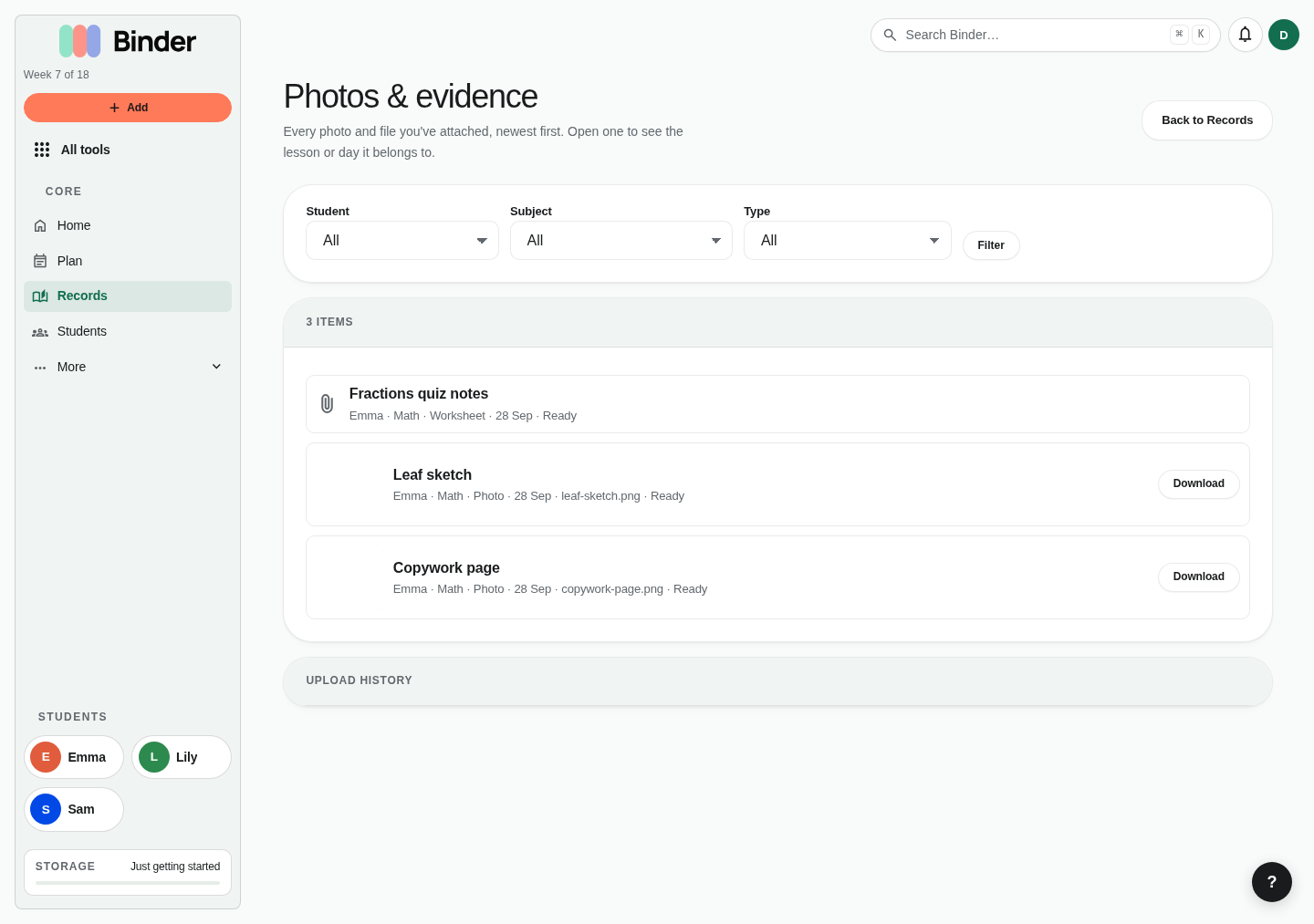
An artifact is any file you attach as evidence to a lesson, narration, learning day, field trip, nature entry, copywork entry, memory work piece, or read-aloud. Open Records → Photos & evidence to see every photo and file, newest first, filtered by student, subject, or type. Each one links back to the lesson or day it belongs to.
Attaching evidence
Use Log learning to add a photo with a note, or open a lesson and use Add evidence. Upload a file (PDF, image, video, audio, document — up to 100 MB). The file is stored securely and linked to that specific record.
Evidence coverage
Each child's profile shows an evidence coverage percentage: the share of completed lessons with at least one artifact. Aim for 30–50% for a well-documented portfolio. Lessons for evaluator-facing subjects (writing, math, science) should have close to 100% coverage.
Bulk export (Scholar)
On a Scholar plan, open Records → Export, choose a student and dates, then Choose evidence files for a separate ZIP. Useful for annual portfolio submissions or offline backup.
Where a photo shows up
On the day it was captured (open the day from Records), on the lesson it belongs to, in Photos & evidence, and in portfolio PDFs when you include work samples. Uploads don't add entries to your Book of Centuries.
Important legal notice
Binder helps you organize and present your homeschool records. It is not a legal service and the information it provides about state requirements does not constitute legal advice. Homeschool laws vary by state, district, and individual circumstances. Always verify your obligations with your state department of education, umbrella school, supervising teacher, evaluator, or a qualified homeschool organization before relying on any compliance information from Binder.