Using Binder
App layout & navigation
Binder is organized around a few big ideas: Home for today’s lessons, Plan for shaping the week and term, Records for what happened, and Students for each child. Subjects, Files, Reports, Compliance, and Templates sit one level down under More, and All tools lists everything. This page explains where those live on screen.
Layout screenshots
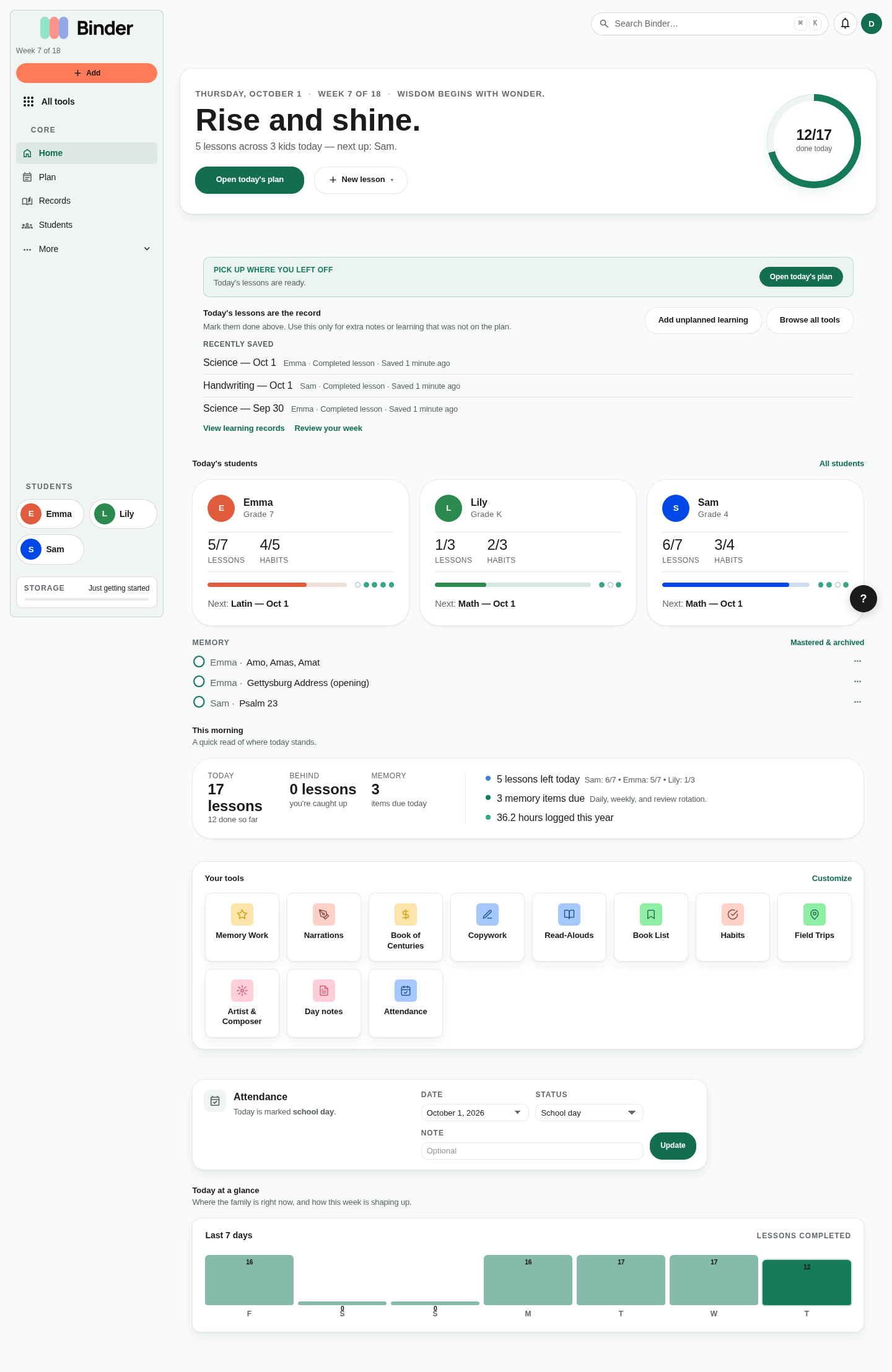
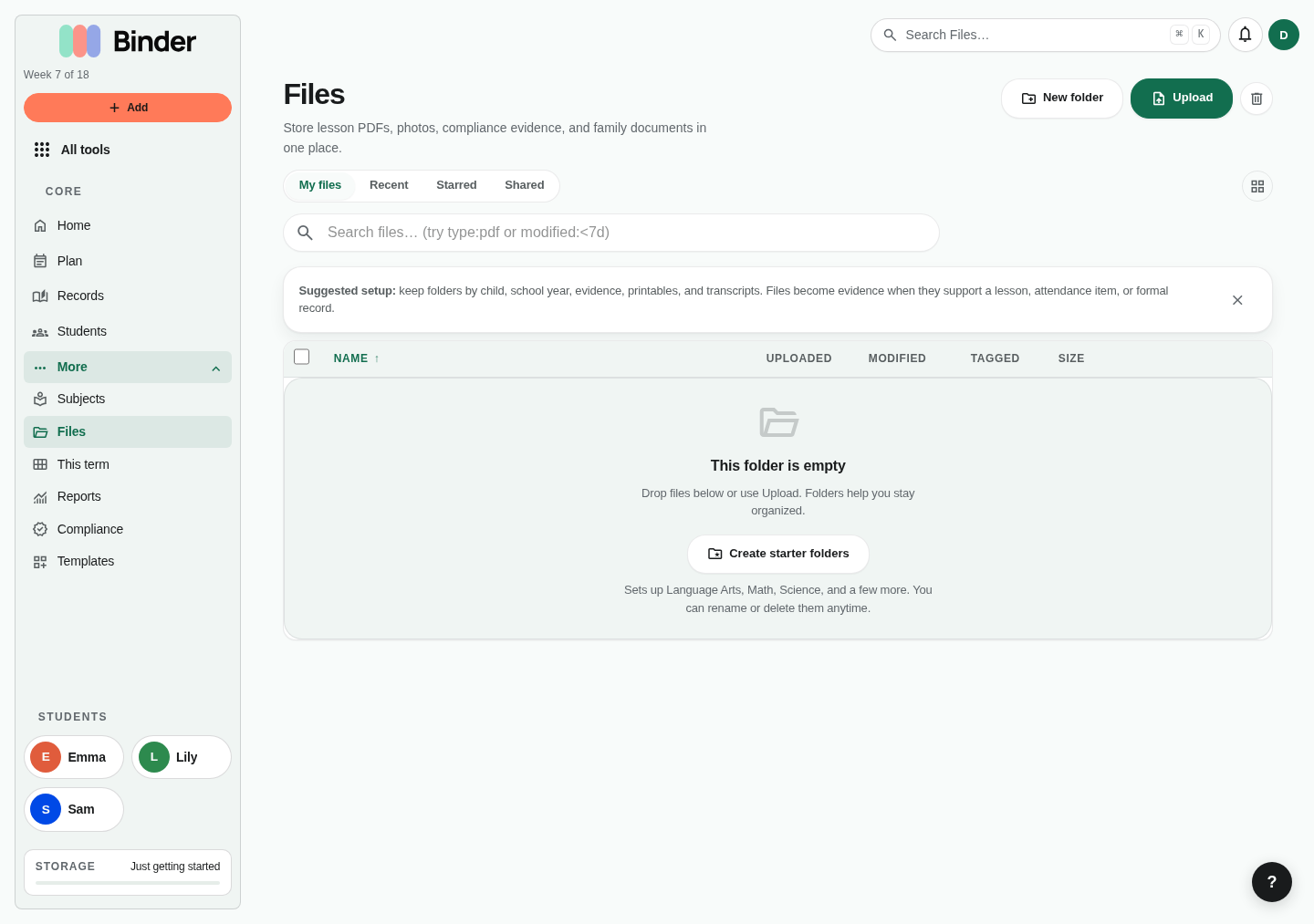
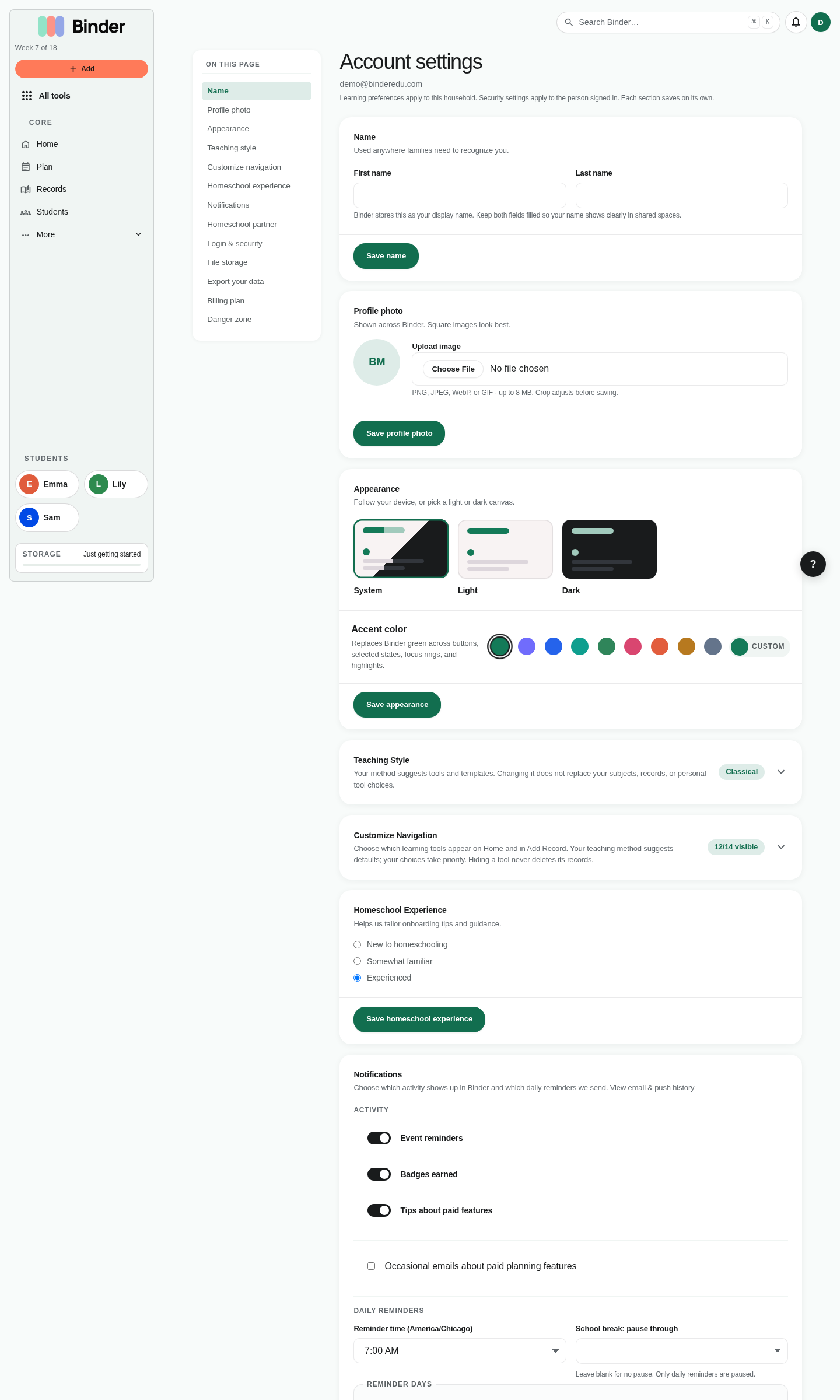
The core navigation pattern repeats across Binder: sidebar, top workspace tools, page content, and account actions.
Desktop: left sidebar
On a wide screen, the vertical sidebar on the left is your home base. Under the logo you will see the current term week, quick actions including Log learning, and All tools, which opens the full directory of Binder tools (narrations, memory work, curriculum lists, Book of Centuries, and more). The Core section holds Home, Plan, Records, and Students; More expands to Subjects, Files, This term, Reports, Compliance, and Templates. The current page is highlighted.
Tools you use often can be pinned from All tools; pinned tools appear under Shortcuts in the sidebar.
Lower down, the Students list jumps straight to each child, and the storage meter shows how much of your plan's space is in use. Tap the logo to return to Home. Account, billing, and settings live behind your avatar or initials in the top-right toolbar.
Workspace toolbar
Across the top of the main pane, a toolbar often includes search, quick actions, and context for where you are (for example the current child or term). On smaller laptops, some actions move into the user menu (your profile dropdown) to save space.
On mobile, the tab bar and its More sheet take the place of the sidebar.
Records vs Subjects and Files — what is the difference?
Records is where day-to-day homeschool work is captured: lessons, narrations, daily logs, attendance, compliance, portfolios, transcripts, and similar. Think “things that happened in our school day.”
Subjects and Files hold longer-lived material: the subjects you teach, your curriculum lists, and the file manager for uploads. Think “things we use again and again.”
Mobile: bottom tab bar
On narrow viewports, Binder shows a fixed bottom tab bar with Home, Plan, Records, and Students, plus a More sheet for Subjects, This term, Files, Reports, Compliance, and Templates. The active item matches the section you are in.
You can still reach every other feature from menus, search, and in-page links — the tab bar is a fast map to the places families spend the most time.
Search
Global search (from the toolbar) finds lessons, children, files, and other objects across your account depending on context. File search is specialized for your uploads and supports filters described in the File manager guide.
This documentation site has its own search too — press ⌘K or Ctrl+K while reading Help Center articles.
Account, billing, and settings
Open your profile menu (avatar or initials) for Account, Billing, Settings (method, theme, notifications), and sign out. Partners you invite for co-parenting access the same household data from their own email sign-in, and Binder records which of you saved each entry.
Bookmarks and deep links
Almost every screen in Binder has its own URL. You can bookmark your planner, a child’s portfolio, or the attendance page in your browser. If you are signed out, Binder will ask you to sign in before continuing.