Week planner
Plan the week. Teach the day.
Plan is where you shape the week: add lessons, move them, and mark co-op days and days off. Today is where you teach the day and check lessons off. That check is the record, so there is nothing to log again at the end of the day.
Planner screenshots
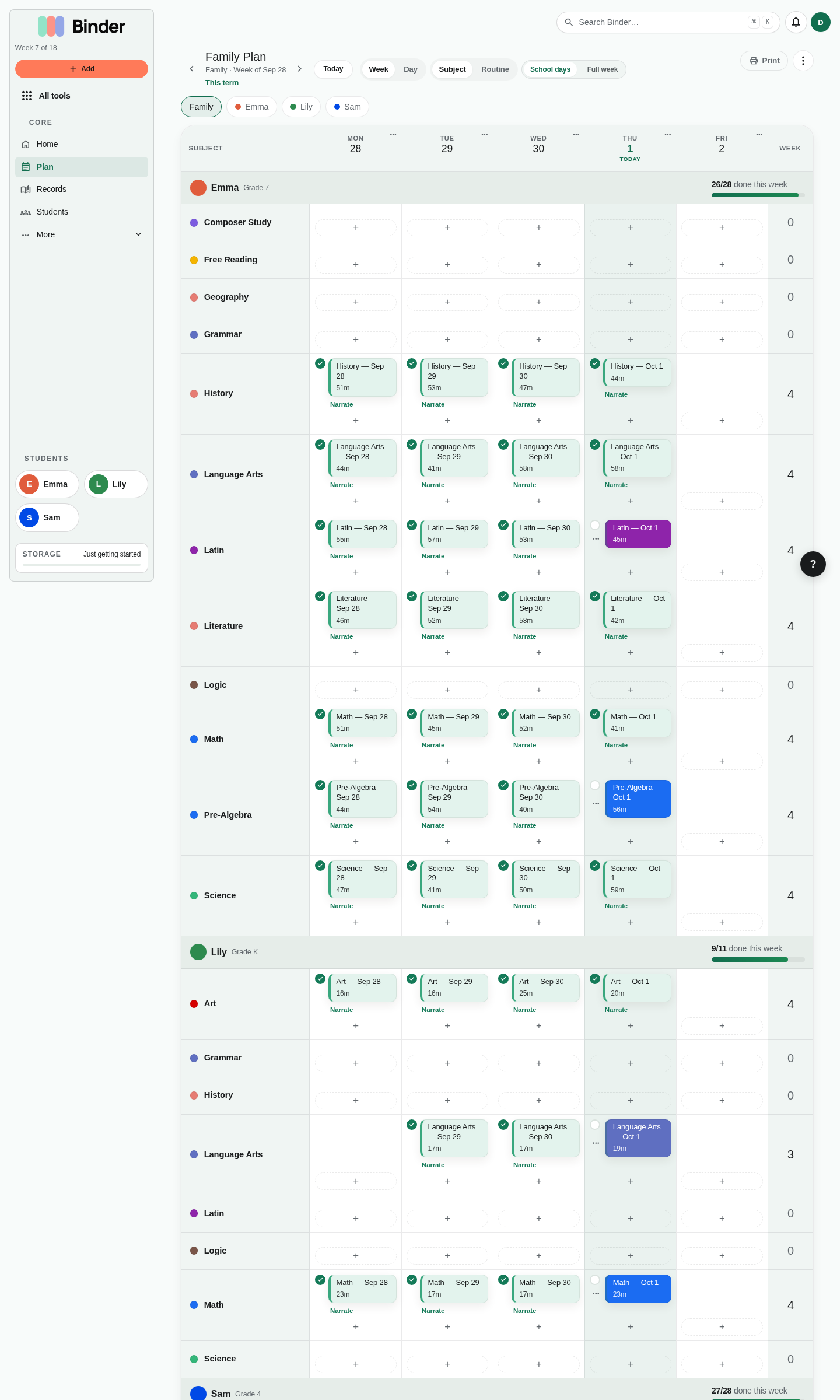
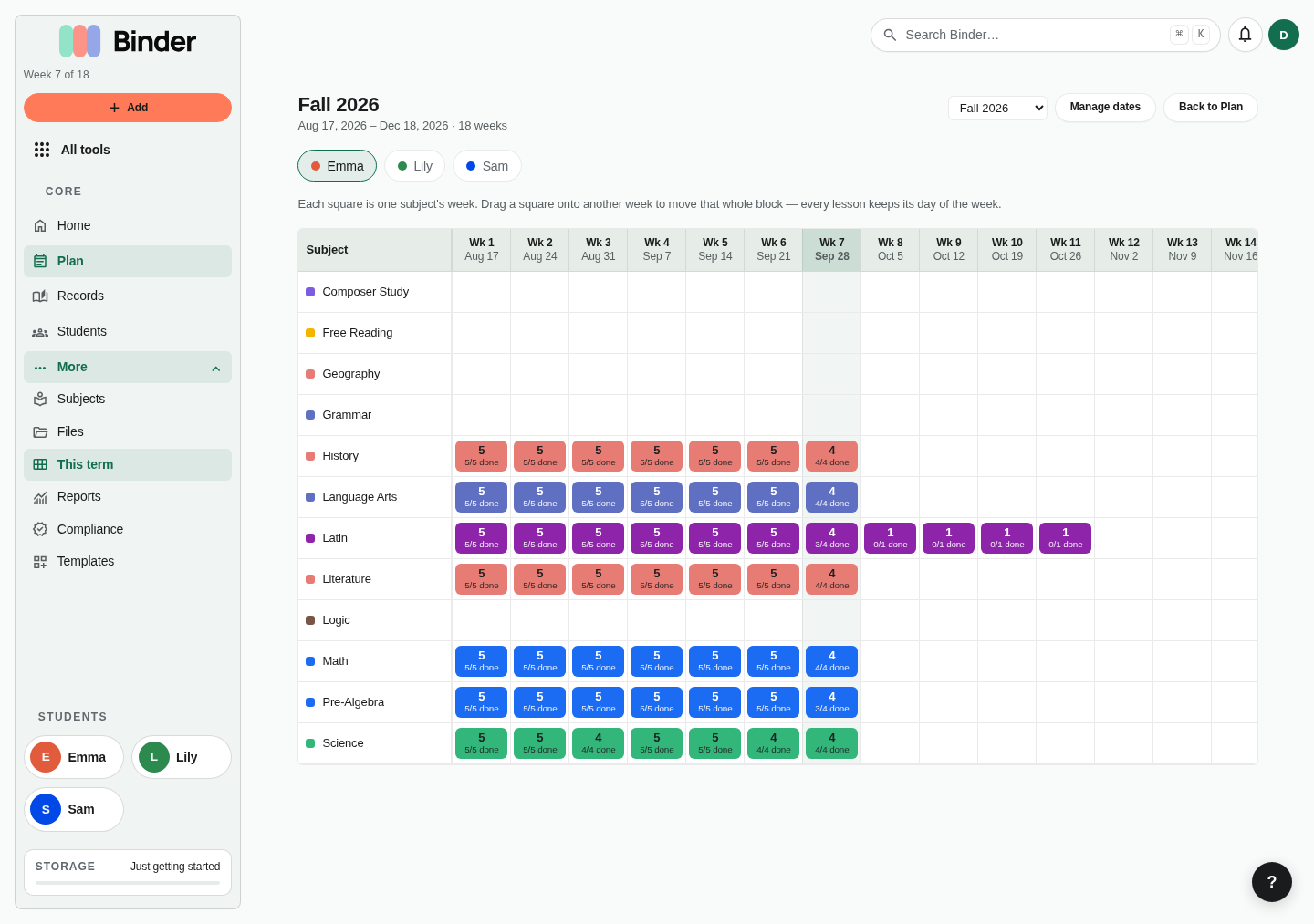
Planning connects subjects, children, dates, lesson states, and later records.
Plan and Today
Open Plan from the sidebar or the mobile tab bar. With more than one student you'll see the Family Plan: the whole family's week as one grid, with a section for each student (their subjects as rows, days across the top). Pick a student above the grid to see only theirs, or Family to see everyone again. Week and Day switch between the week and a single day, where each lesson shows its notes; phones open on the Day view. Switch to Routine to see rows by time of day. Use the arrows to change weeks (or days) and Today to come back. School days or full week shows or hides weekends.
Plan: reshape the week
Add lessons, move them, mark co-op days and days off, and print. The week menu (⋮) beside Print holds the week tools and Month at a glance (the month on one calendar). This term shows the year ahead.
Today: teach the day
With one student, Home lists today's lessons and any memory work that is due. With more, Open today's plan on Home shows the whole family's day. Check a lesson off as you finish it; checked lessons turn green with a filled check.
Adding a lesson
On Plan, press + in any day's cell. You only need a title; the student, subject, and date come from the cell. Duration and notes are optional but feed your reports.
Title
As specific or as general as you like: "Lesson 21c," "Cycle 3 Week 2 memory work," or just "Math." Add detail in the notes.
Duration
Optional, in minutes. Binder uses it to total instructional hours for compliance. You can change it after the lesson is done.
Shared lessons
A lesson belongs to one student. For something you teach together, tick Also add for in the lesson form: each child gets their own copy in their subject of the same name, so records and hours stay separate. For a book you read aloud together, use Read-Alouds.
Subjects
Each subject is a row on Plan. Add subjects from Subjects in the sidebar (under More on smaller screens).
Completing lessons
Check the lesson off on Today. That check is the teaching record. It:
- Records the lesson as done on that date
- Adds the lesson's duration to that day's hours
- Counts the day as a school day for attendance
- Updates subject hours in progress reports and portfolios
You don't need to use Log learning for lessons that were on the plan; logging them again creates a duplicate. Log learning is for extras: unplanned learning, a photo, or a note. You can uncheck a lesson at any time and the day's totals update.
Co-op days, days off, and field trips
Each day's header on Plan has a menu with three choices. You can add a short label, such as the name of your co-op.
Co-op
School happened somewhere else. A co-op day counts as a school day and shows as "Co-op" in attendance and reports, not as a day off. You can still add home lessons that day if you have any.
Field trip
Also counts as a school day. Use the Field Trips tool if you also want a record with photos and notes.
Day off
A rest day: holidays, sick days, a break week. Today shows the day as off instead of empty.
Changing your mind
Open the same menu and choose Resume regular day.
Moving lessons
Within the week
On desktop, drag a lesson to another day. If you move the wrong thing, Plan's week menu (⋮) has Undo last move.
To a later week
Open the ⋯ menu on the lesson and choose Next school day: it skips weekends and days you've marked as co-op, off, or a field trip, so a Friday lesson lands on Monday (or Tuesday if Monday is co-op). Next week or a later week keeps the same weekday. On desktop you can also drag a lesson onto the next-week arrow.
Everything unfinished
On Plan, open the week menu (⋮) and choose Move unfinished lessons forward. Tick what should move to the next school day, or skip lessons you no longer need. Nothing changes until you confirm, and you can undo afterward.
A whole subject-week
On This term, drag a subject's block to another week. Lessons keep their weekdays.
Planning the year: This term and curriculum lists
Open This term from Plan or More. It shows one row per subject and one column per week of the term. Click a week's header to open that week on Plan.
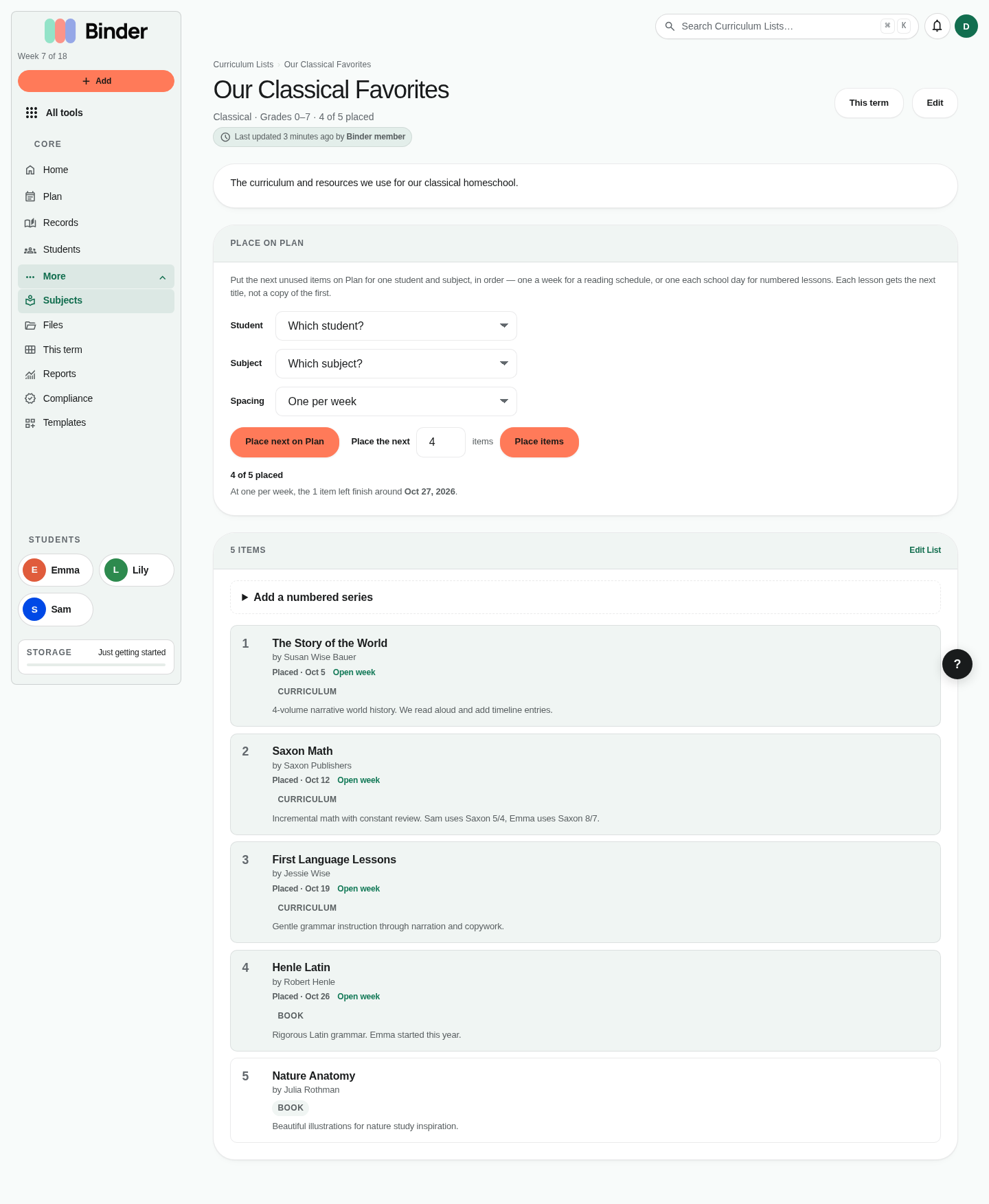
To lay out lessons in order (Lesson 4, then 5, then 6, and so on), use a curriculum list (All tools → Curriculum Lists):
- Create a list and add one item per lesson, in order. For a textbook, use Add a numbered series (for example "Saxon Math 5/4, Lesson" 1 to 120) instead of typing each one.
- On the list, under Place on Plan, choose the student, subject, and Spacing: one per week for a reading schedule or a Classical spine, one per school day for numbered lessons or a Waldorf block.
- Click Place next on Plan to add the next item, or Place the next 4 items (or any number).
Each lesson gets the next item, not a copy of the first. Days off, co-op days, and field trips are skipped when they're already marked, and so are days that already have a lesson in that subject. With one per school day, lessons follow a lesson template's weekdays if the subject has one. The list shows your progress, such as "12 of 36 placed," and an estimate of when the rest would finish at that pace. This term has a quick Fill button for subjects linked to a list. If life shifts, drag the subject-week on This term, or use Move unfinished lessons forward.
Copying a week and templates Plus
Copying and templates repeat the same week shape; they don't advance through a curriculum. Use a curriculum list when each week's lesson is different. These options live in Plan's week menu (⋮):
Copy week forward
Copy this week into next week, a number of weeks, or through a date or the end of the term. Optionally limit it to some students; on one student's Plan, that student is ticked. Click Preview to see exactly what would be created before you copy. Copies start unfinished, and lessons that already exist are skipped.
Generate from templates
A lesson template is a lesson that repeats on chosen weekdays (for example Mon/Wed/Fri). Create them at All tools → Templates. Templates don't add lessons on their own: Generate from templates fills this week, and Generate for the whole term fills every week of the current term.
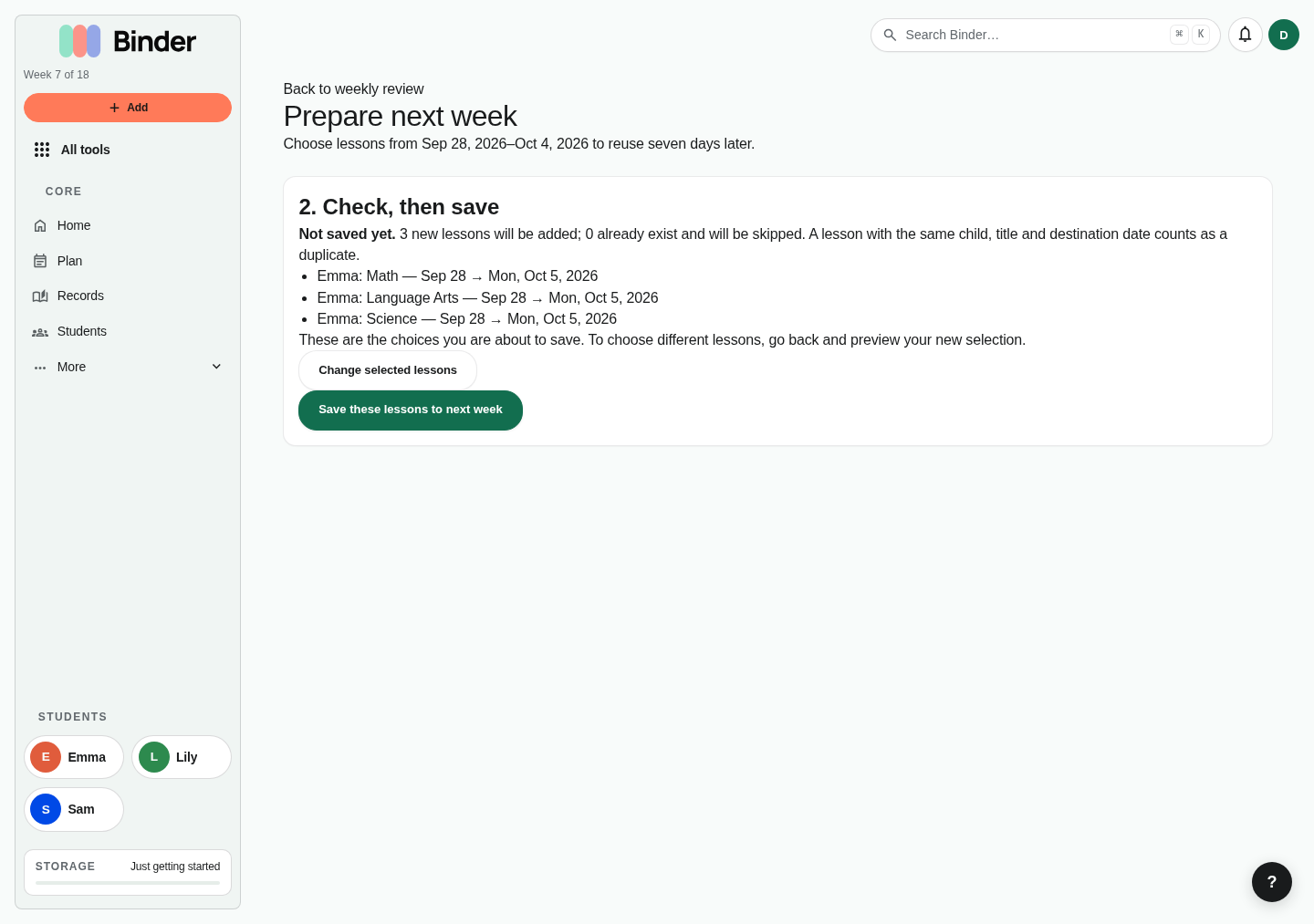
On Free, you can still preview next week: open Review your week from Home, choose the lessons worth repeating, and click Preview next week. Saving the copies is the Plus step, and your selection is kept for seven days while you decide. If you copy the wrong thing, the confirmation includes an Undo that removes only what the copy created.
Printing
On Plan, open Print:
- Today's checklist: one day, with a checkbox next to each lesson. Good for the kitchen table.
- Weekly planner: the week grid, without checkboxes.
The checklist prints today, or the day you've opened on Plan. The weekly planner prints the week you're looking at, so change weeks first to print a different one.